Guide/Part One · Get started
The Draft workspace
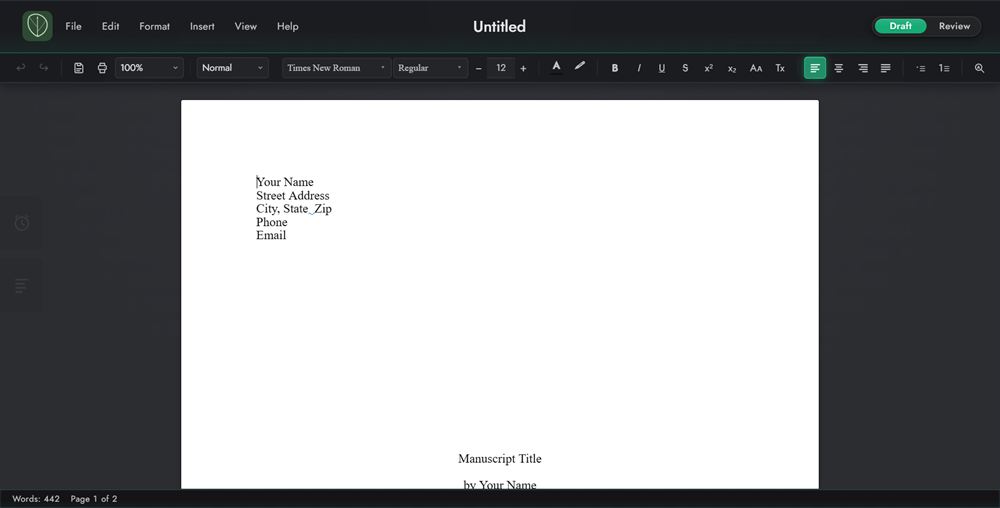
Draft Mode is where you write, and where you'll spend most of your time. The toolbar can stay in view or slide away while you type.
- Top bar (top): the leaf logo (returns to Home), the menu bar, your document's name, the Versions dropdown (once the document has more than one version), and the Mode Switcher.
- Toolbar (below it): undo and redo, save, print, zoom, paragraph style, font, style and size, text color and highlight, character formatting, alignment, lists, and Find and replace.
- The page (center): a true-white sheet on a neutral gray surround, so paper reads as paper.
- Panel tabs (left edge): tabs that slide out the Productivity and Contents panels. Planning notes open in a panel on the right, from the Contents panel.
- Status bar (bottom): live word count, Page X of Y, and the time of the last save or autosave.
Note
By default the toolbar is always visible. To have it slide away while you type, choose View ▸ Toolbar. See Toolbar behavior.
Note
On macOS the menu bar isn't in the top bar; it's the real menu bar at the top of your screen, where every Mac app keeps it. The window's traffic lights sit in the top bar instead. Everywhere this guide says something like File ▸ Save As, look there. See Windows & macOS.
Tip
To get around without the mouse, press F6 to move from the page to the toolbar, an open panel, and the status bar. On Windows, Alt or F10 reaches the menu bar. See Accessibility.